The Google Ads integration uses the Import from Clicks functionality in Google Ads, allowing it to upload both newly converted leads and previously converted leads that occurred before the connection was established.Documentation Index
Fetch the complete documentation index at: https://docs.octanist.com/llms.txt
Use this file to discover all available pages before exploring further.
Table of Contents
Setup Video
Need help setting up Offline Conversion Tracking with Octanist?Watch the video below, it explains all the steps in detail:
1. Octanist
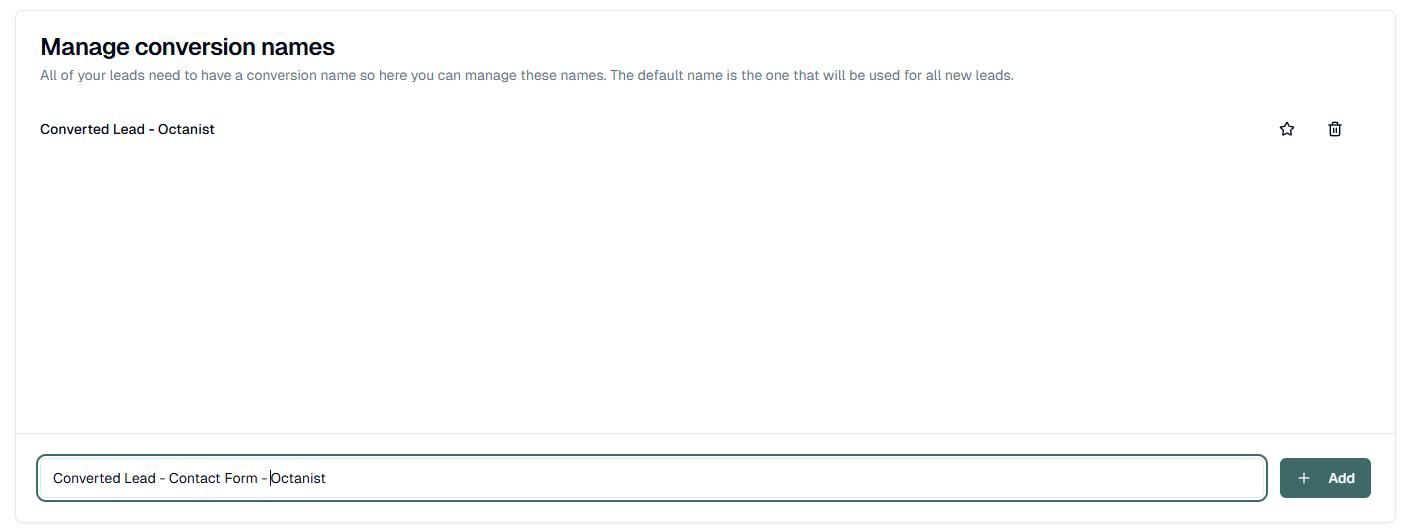
- Go to octanist.com and navigate to General > Manage Conversion Names.
- Under Manage Conversion Names, add clear and concise conversion names. For example: Converted Lead - Octanist
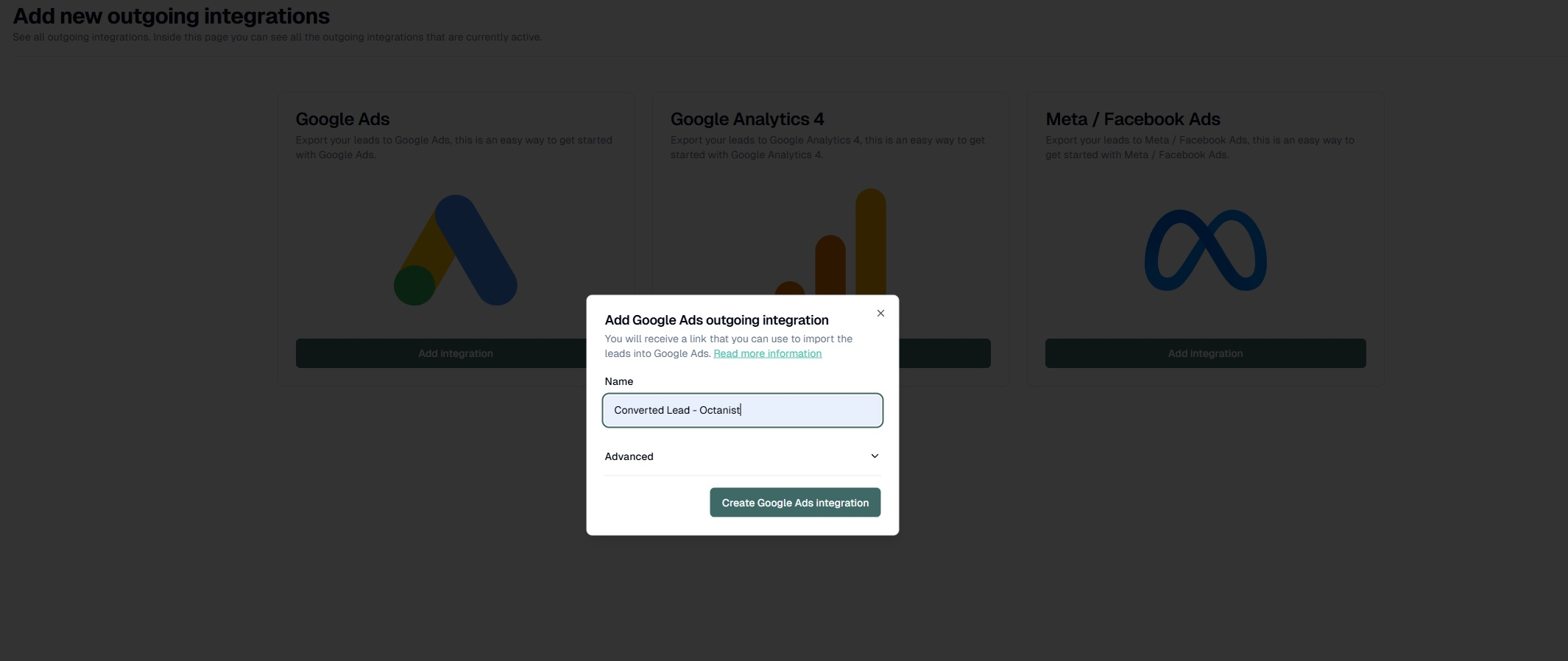
- Go to octanist.com and navigate to Integrations > Outgoing.
- Select Google Ads.
- Give the integration a clear and concise name, such as: Company Name - Octanist - Google Ads Integration.
Goals > Settings > Enhanced Conversions for Leads > Managed through Google Tag Manager.
- Octanist will generate a unique link. Save this link carefully, as you will only receive it once.
The link will look like this:
https://api.octanist.com/integrations/outgoing/googleads/{{Octanist ID}}/?apikey=oct_{{Unique Key}}
2. Google Ads
- Go to Google Ads.
- Navigate to your account and go to Goals > Summary.
-
Create a new conversion action, select Conversions - Offline, and press Continue.
We will add a data source later. (click “Add data sourse” and select Later)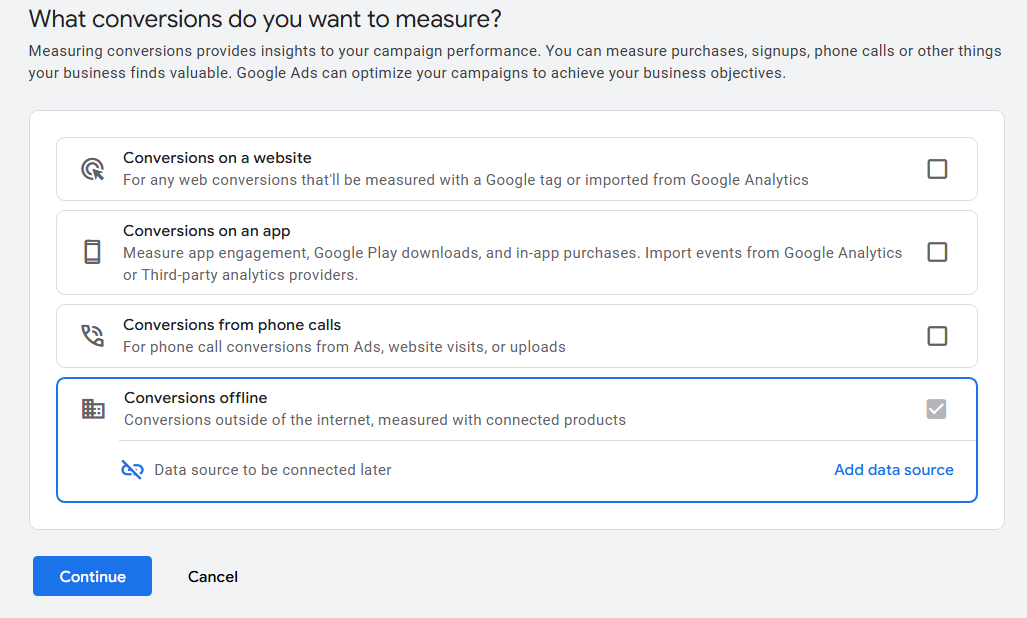
-
Create a Converted Lead conversion. If you cannot find Converted lead, click on “See all”.
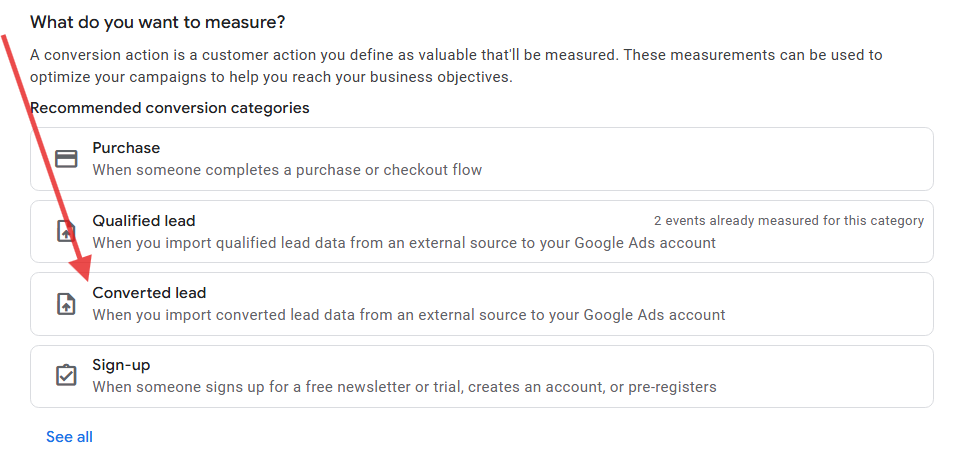
- Add a new conversion action.
-
Click on Settings of the new conversion action:
- Set it as a Primary or Secondary conversion depending on your preferences (this can be changed later).
- Give it a concise name, e.g., Converted Lead - Octanist
- The other settings can be left as is.
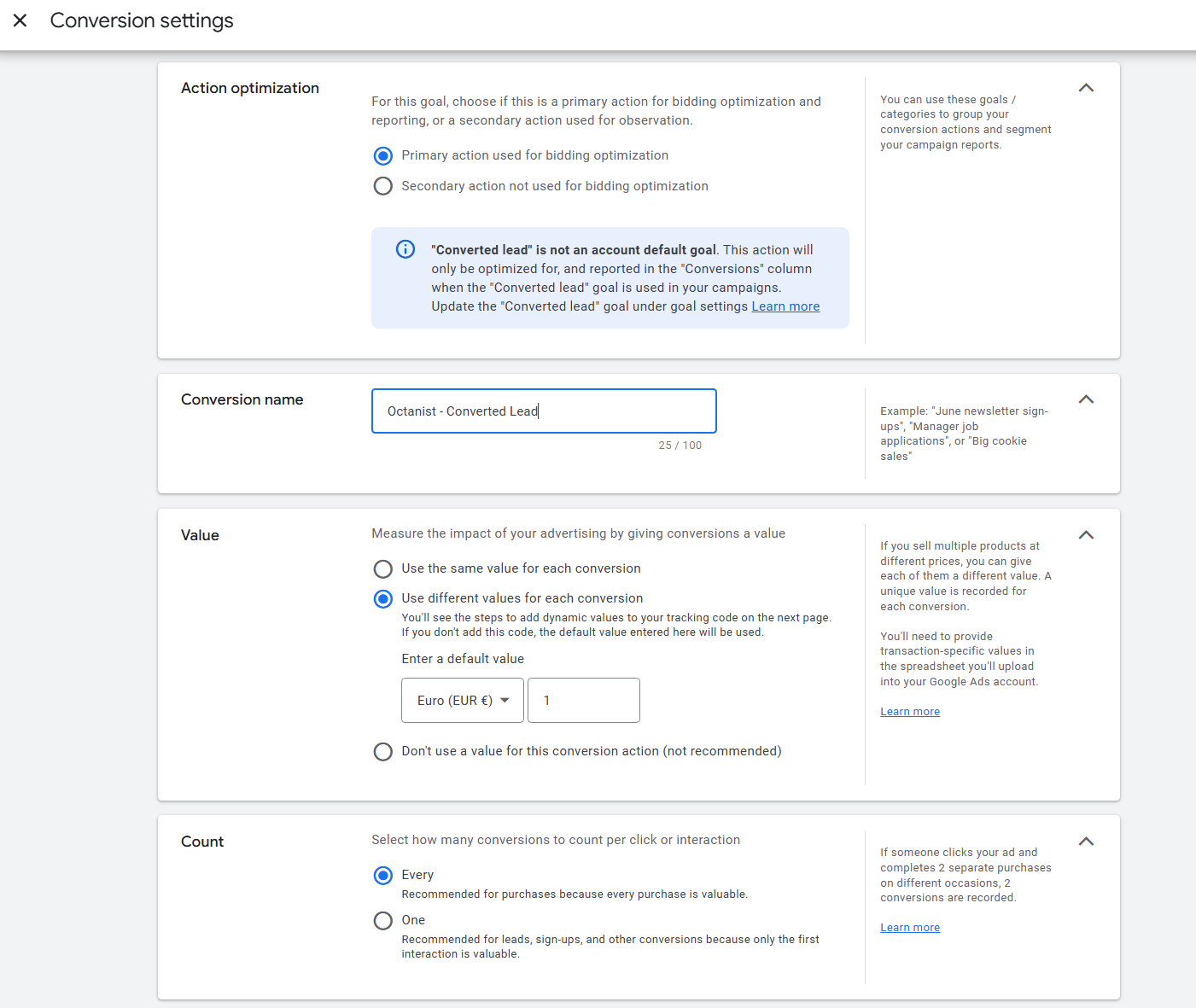
-
Once done, save your settings and continue the setup until you reach the final confirmation screen, as shown below.
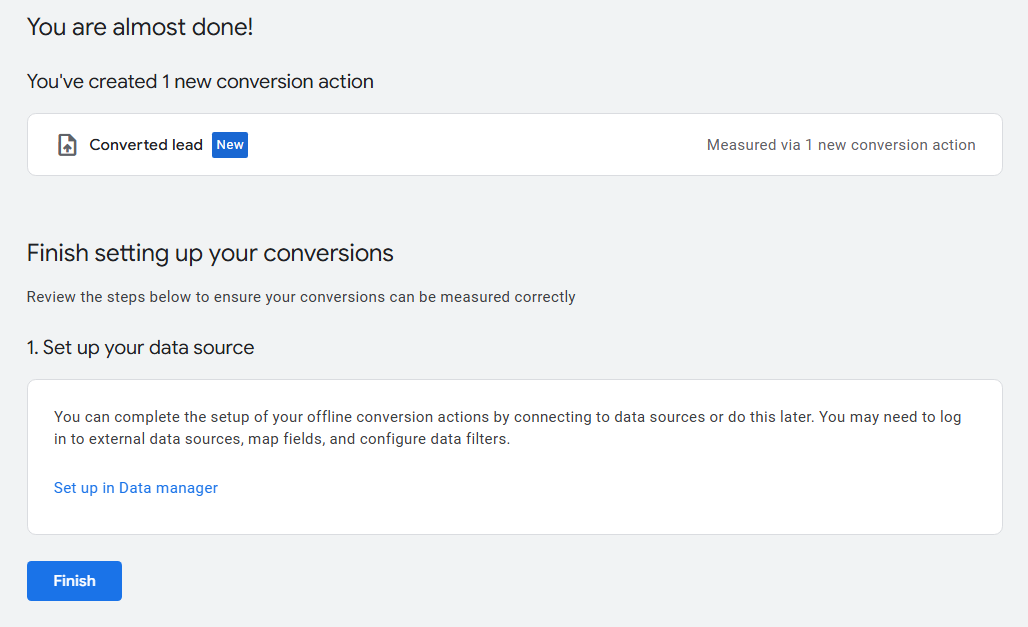
- Click Finish. In the next steps, we’ll configure the Data Source (Uploads) that sends your conversions from Octanist to Google Ads.
Configuring Uploads
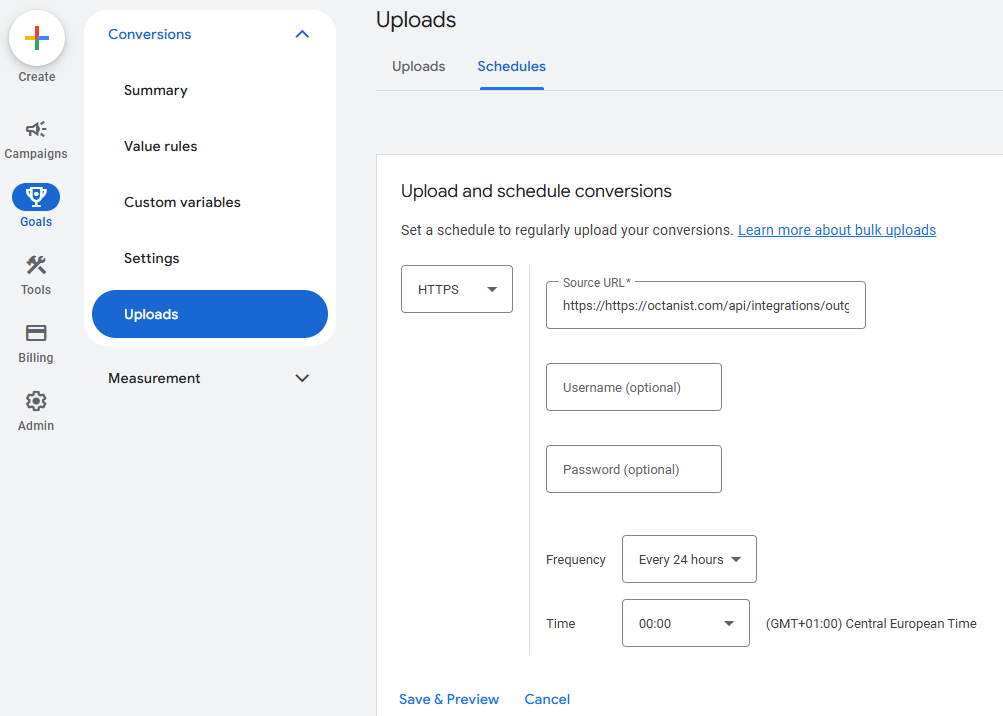
- Go back to Goals > Uploads.
- Open the Schedules tab and add a new schedule:
- Choose HTTPS as the source.
- Enter the link provided by Octanist in the Source URL field.
- Set Frequency to Every 24 hours.
(Daily synchronization is not always necessary, unless leads convert within 24 hours.) - Choose a preferred time, e.g., 0:00.
- Save the schedule.