The Zoho CRM integration allows you to update leads based on Zoho CRM deal events.Documentation Index
Fetch the complete documentation index at: https://docs.octanist.com/llms.txt
Use this file to discover all available pages before exploring further.
The Zoho CRM integration is quite difficult to set up. If you are having
trouble or would like us to help you set it up, please contact us via
support@octanist.com.
Table of Contents
1. Zoho CRM
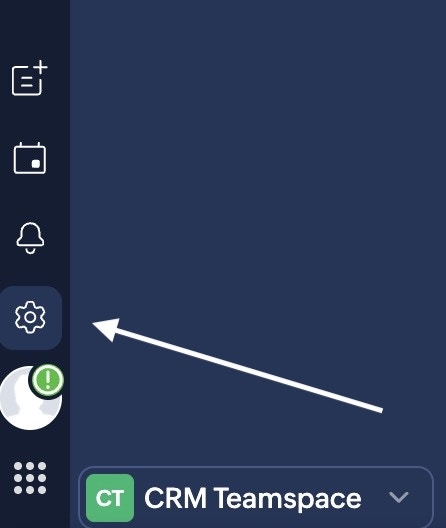
- Go to Zoho CRM and log in. Click the Settings icon in the top-left corner.
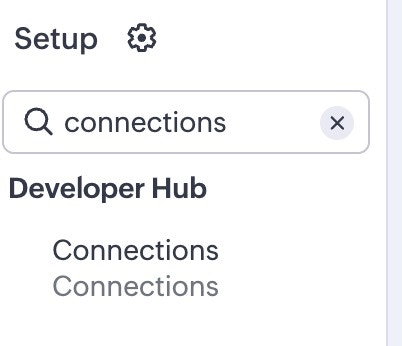
- In the left sidebar, search for connections and click on it.
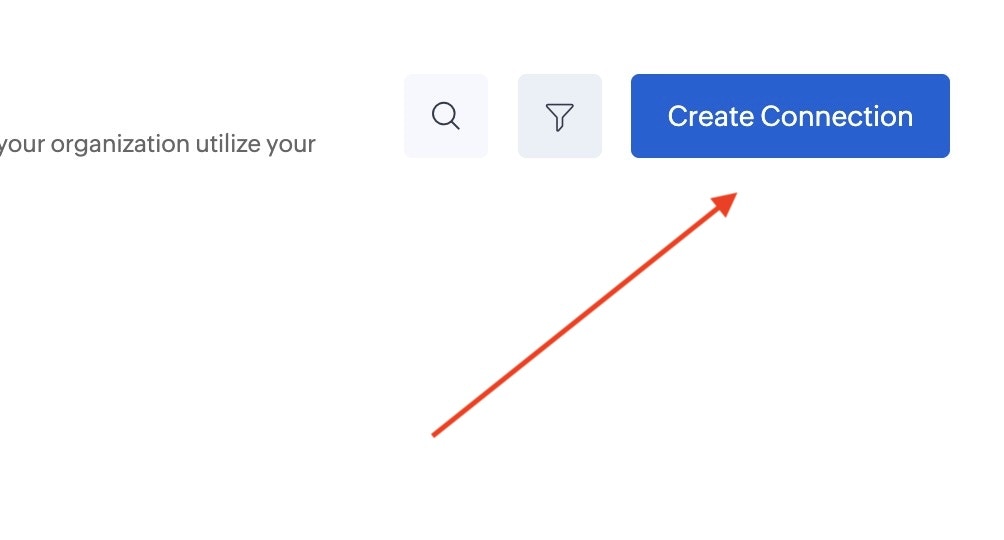
- Click on Create new connection.
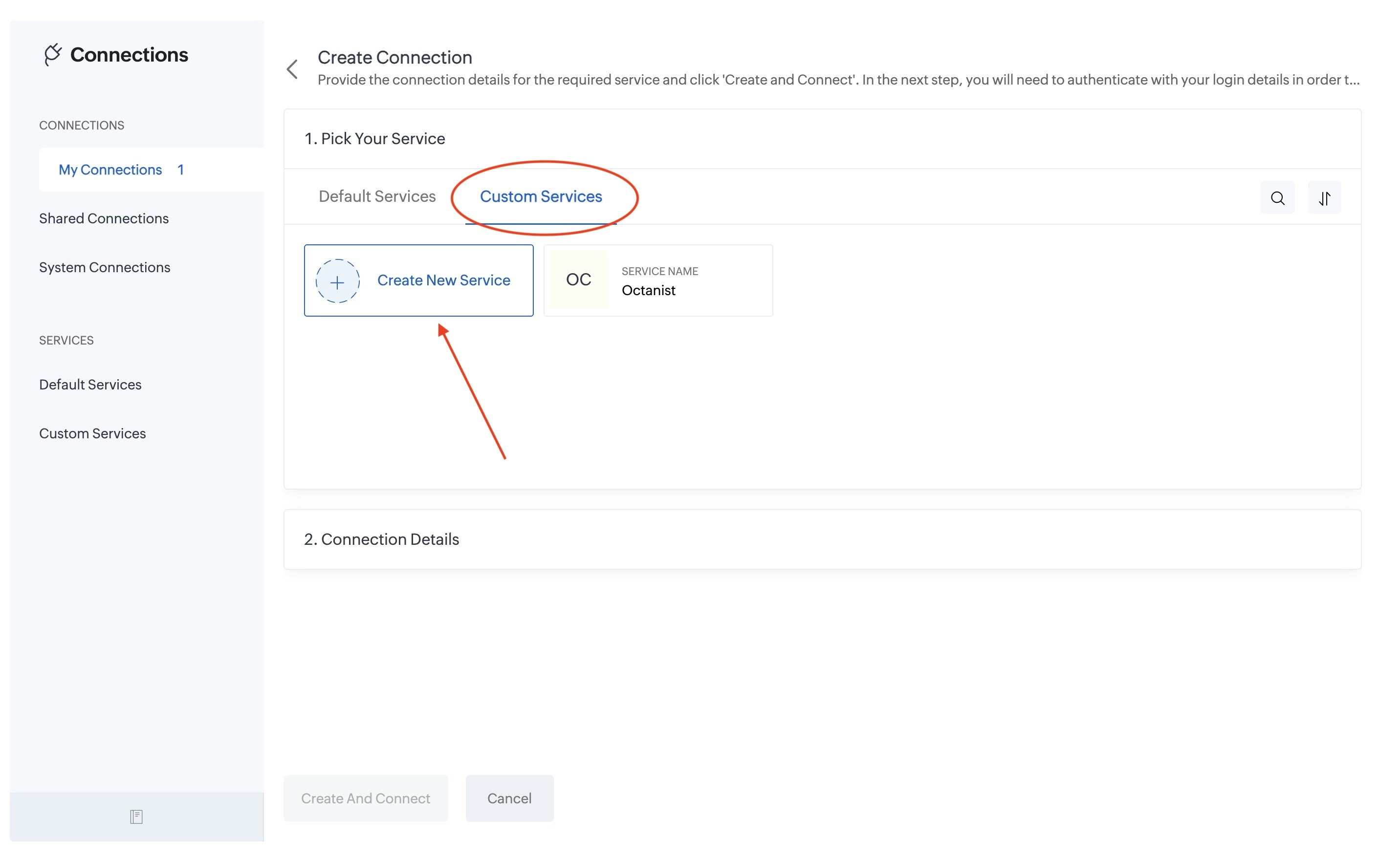
- Select Custom Services and click on Create New Service.
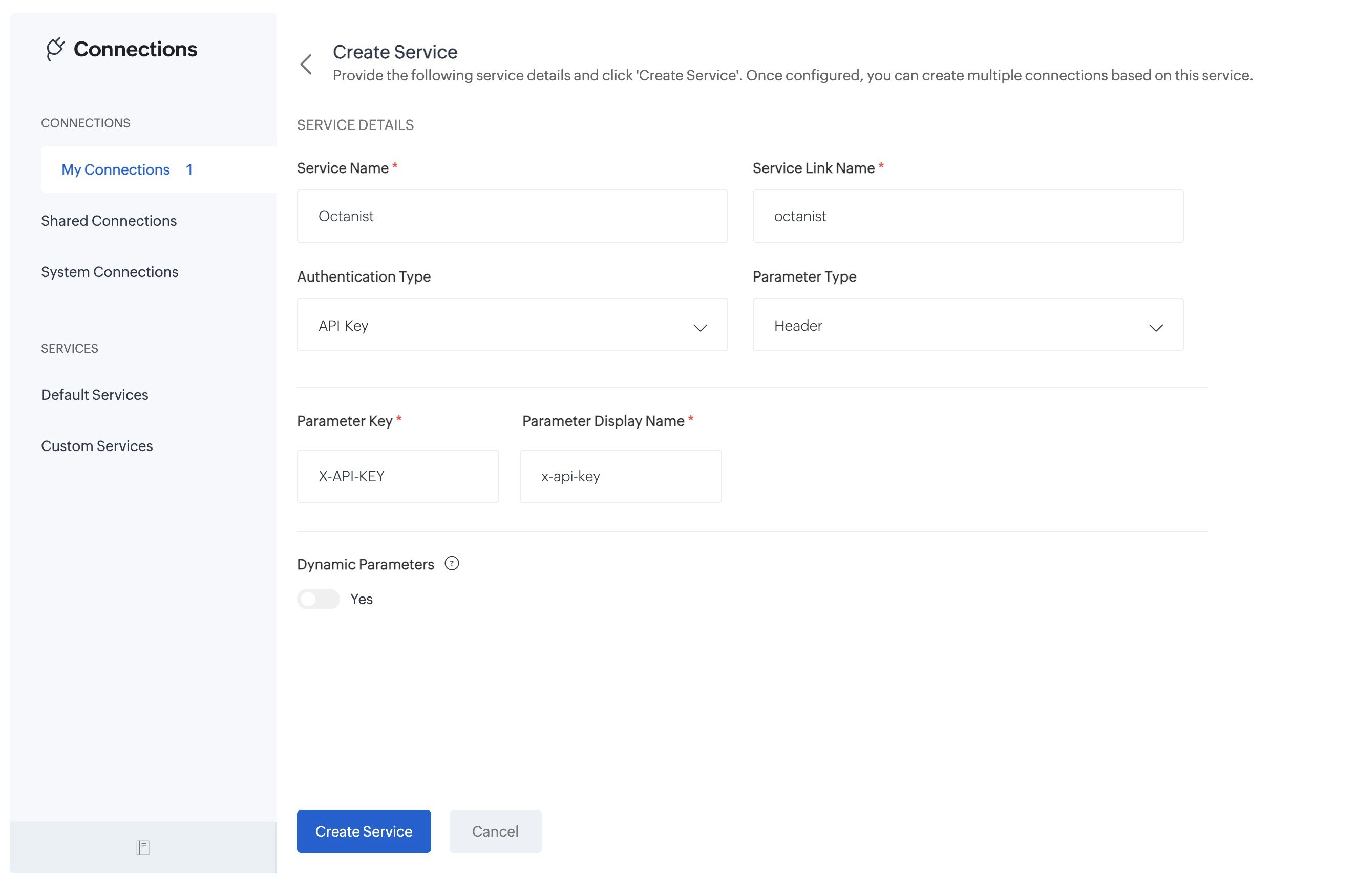
- Here we are creating a new service. We give it the following details:
- Name: give it a name that is easy to identify, such as Octanist.
- Authentication Type: select API Key.
- Parameter Type: select Header.
- Parameter Key: enter X-API-KEY.
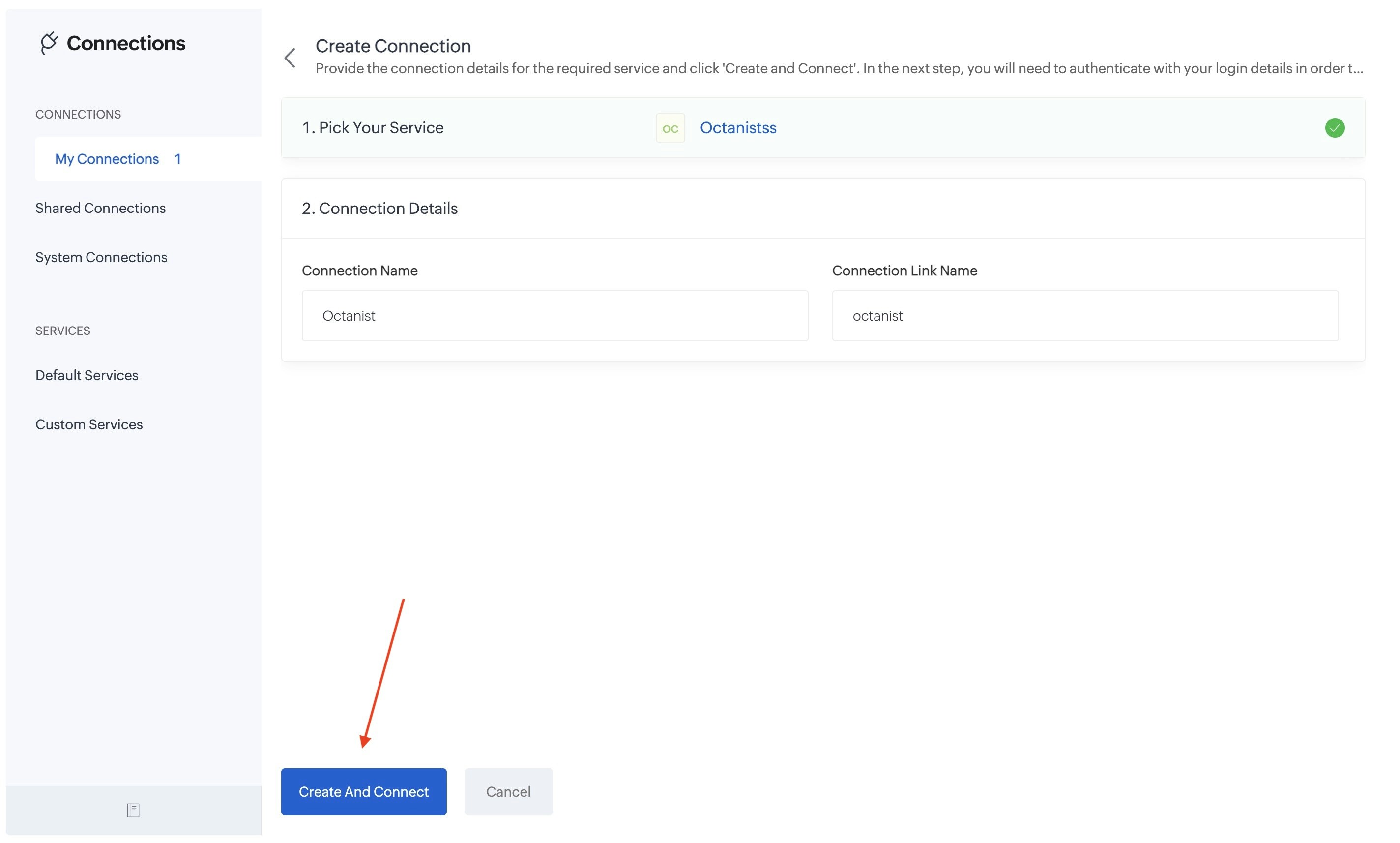
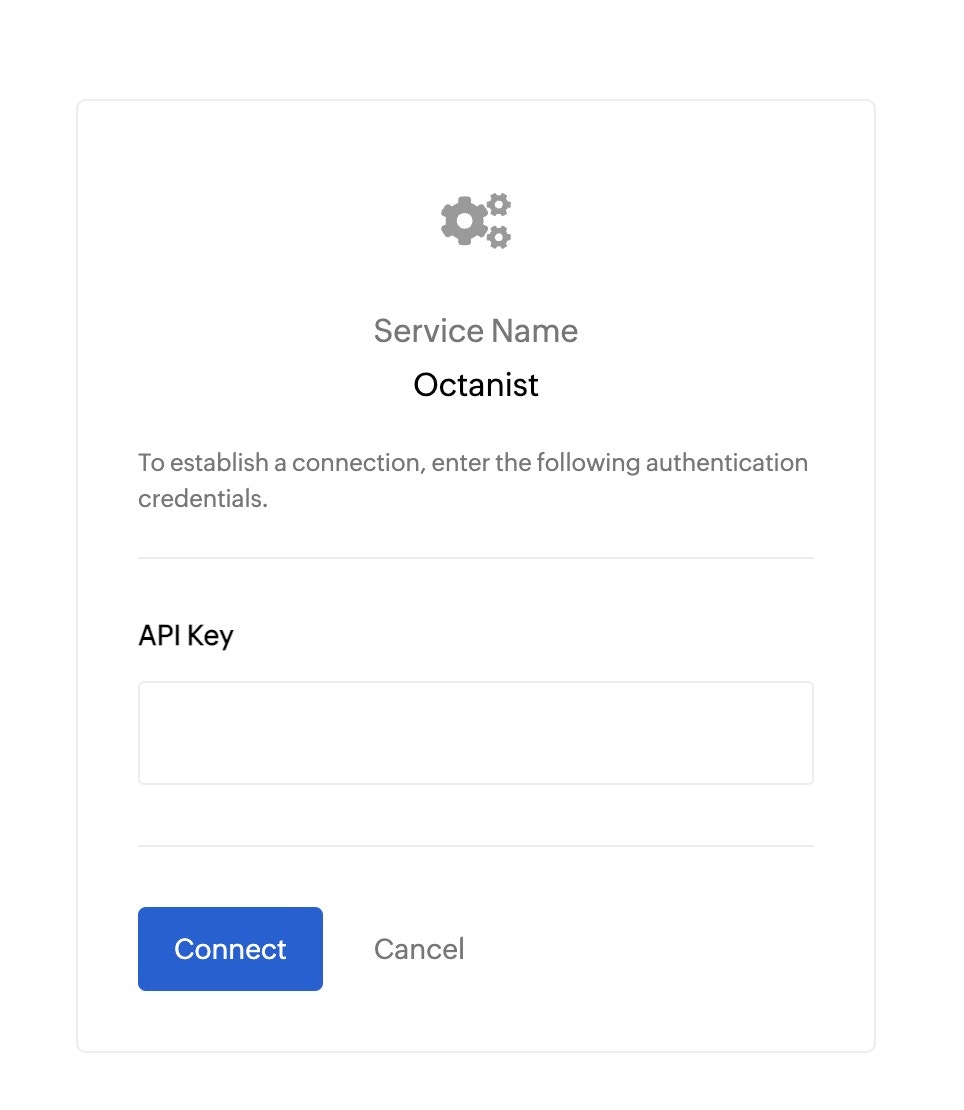
- Then give the connection a name. Here we give it the name Octanist. and click on Create And Connect.
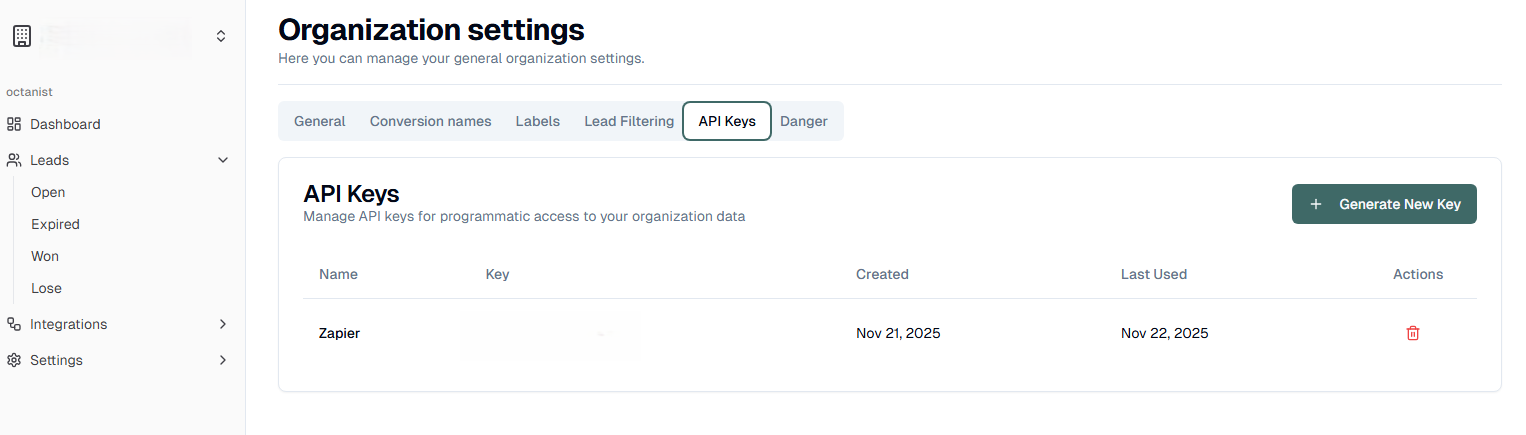
- You can find this in Octanist → Settings → General → API Key.
-
Create a new API key and give it a clear and descriptive name.
- Click Connect.
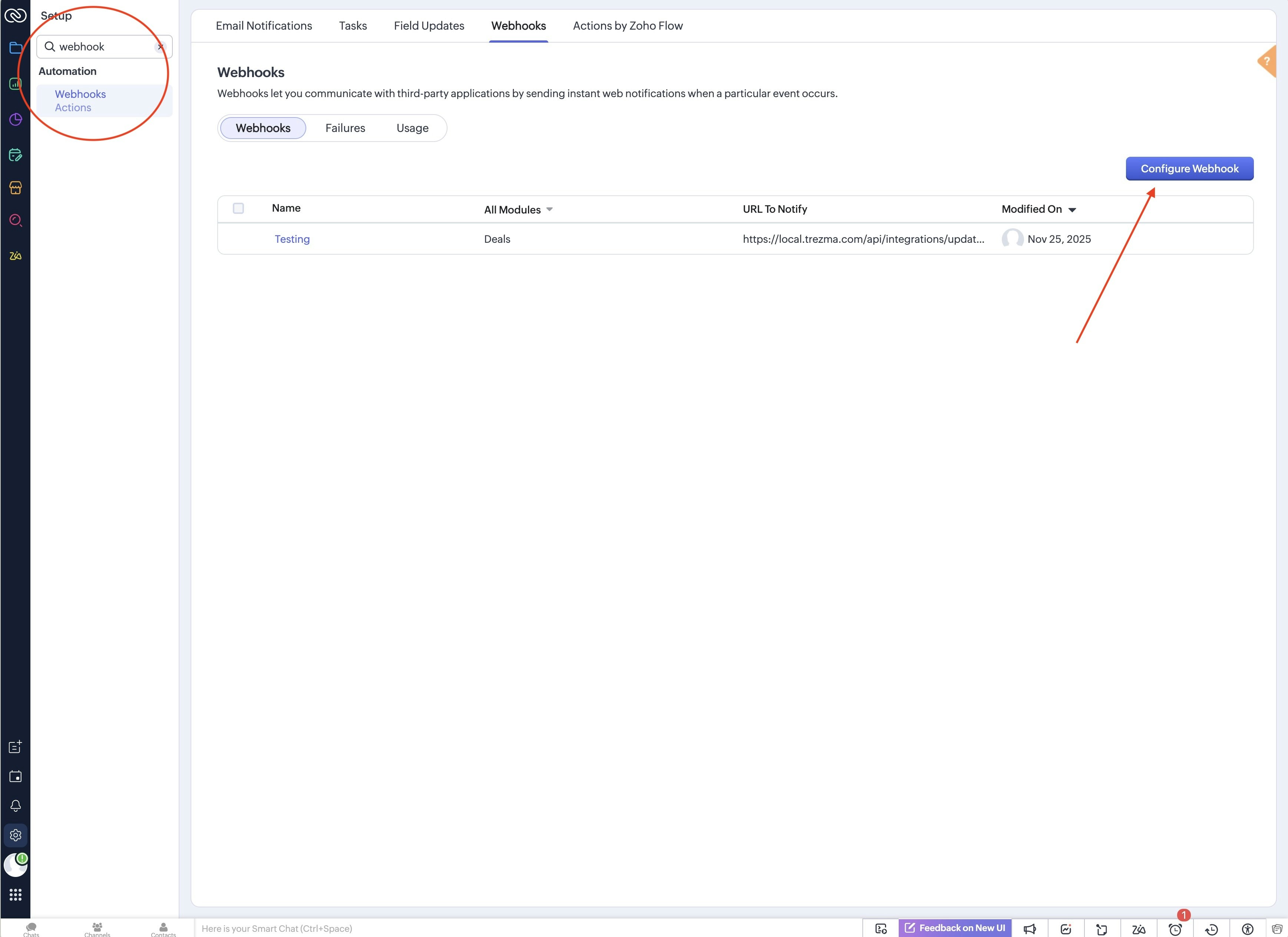
- Search for webhooks and click Configure Webhook.
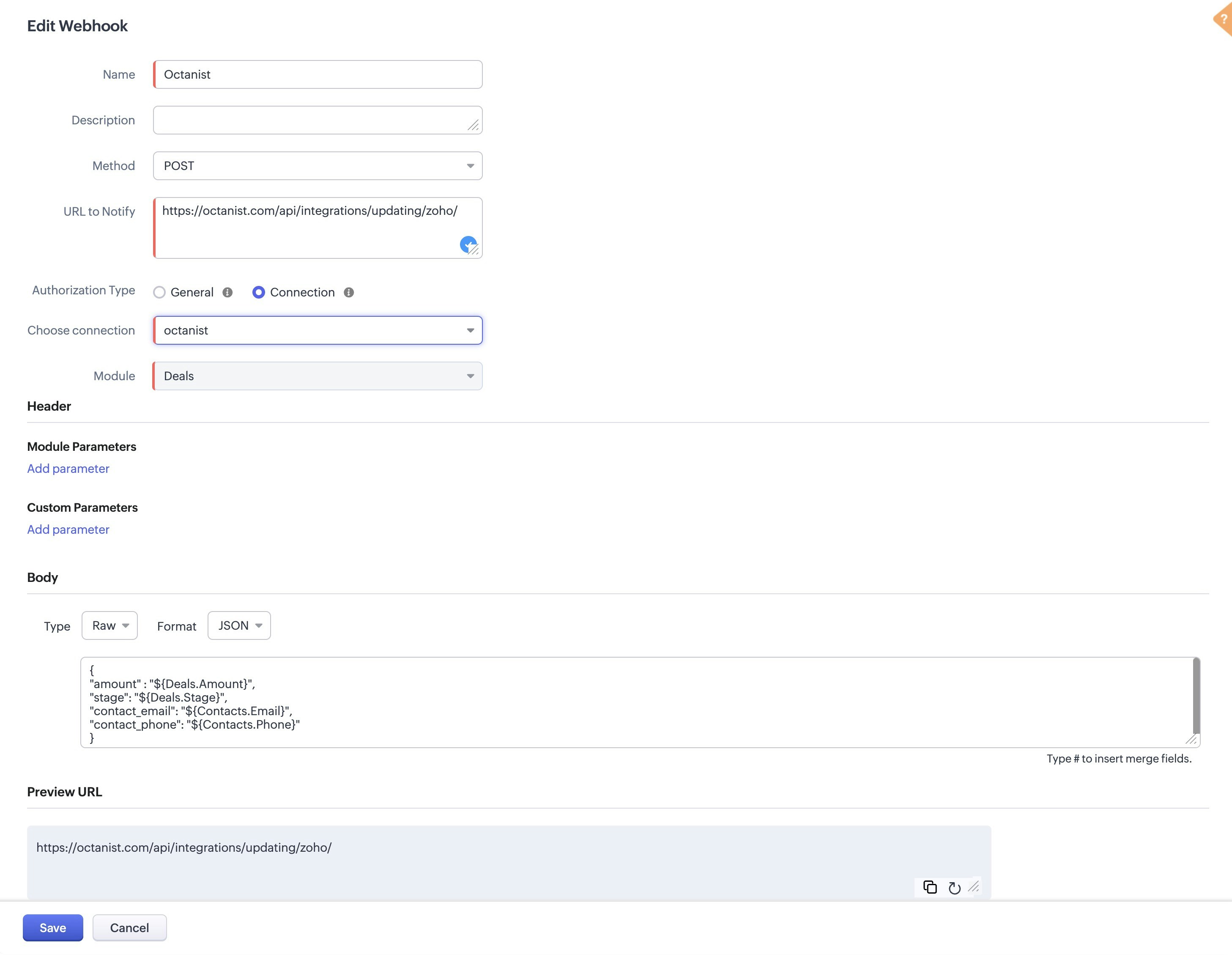
- Now we will create a new webhook. Here are the fields we need to fill in:
- Name: give it a name that is easy to identify, such as Octanist.
- Method: select POST.
-
URL to Notify: enter:
https://octanist.com/api/integrations/updating/zoho/ - Authorization Type: select Connection and choose the connection you created.
- Module: select Deals.
-
Body:
- Type: select Raw.
- Format: select JSON.
- Content: enter the following JSON:
- Save
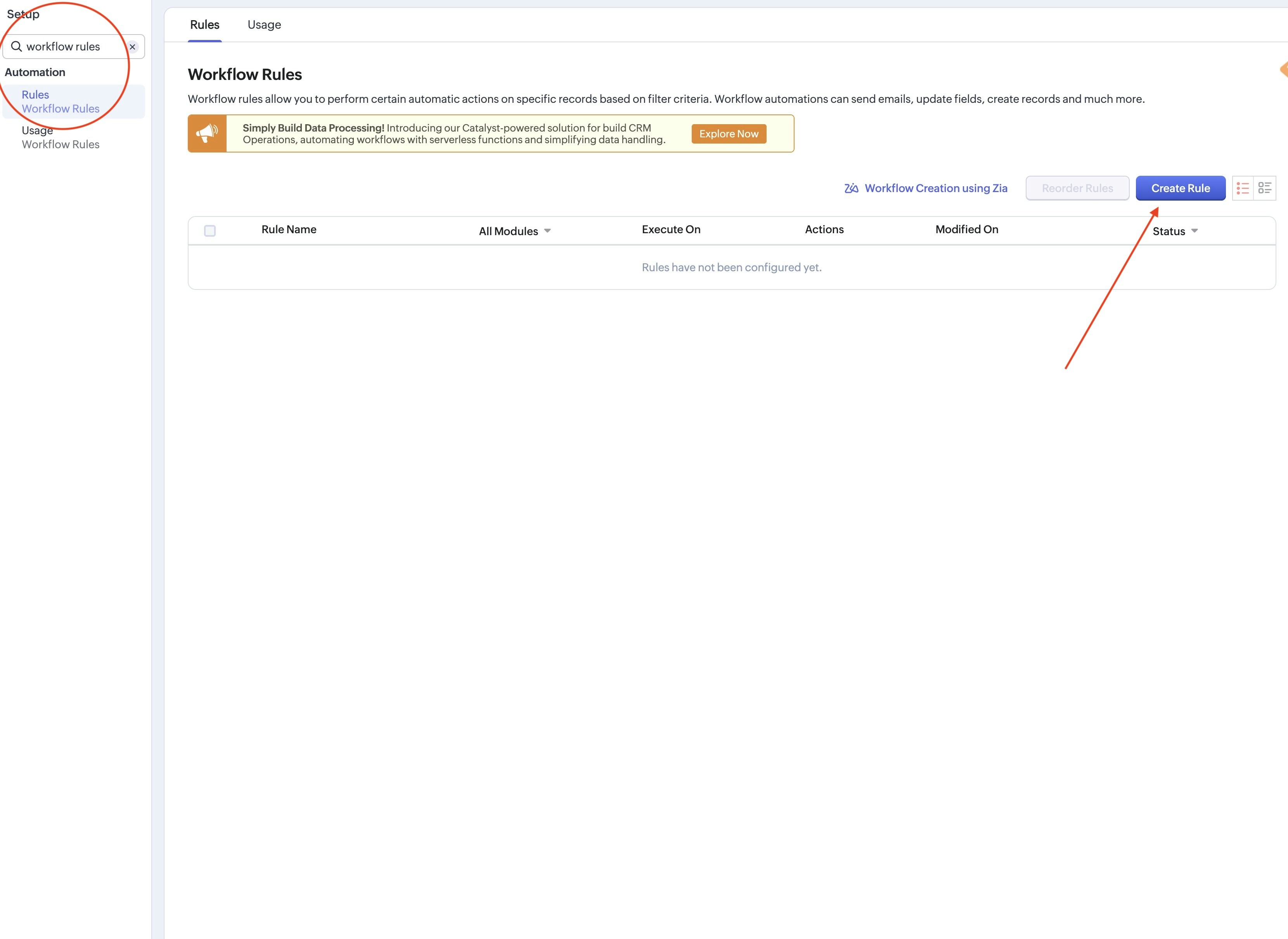
- Search for workflow rules and select Rules. On the page click on Create Rule.
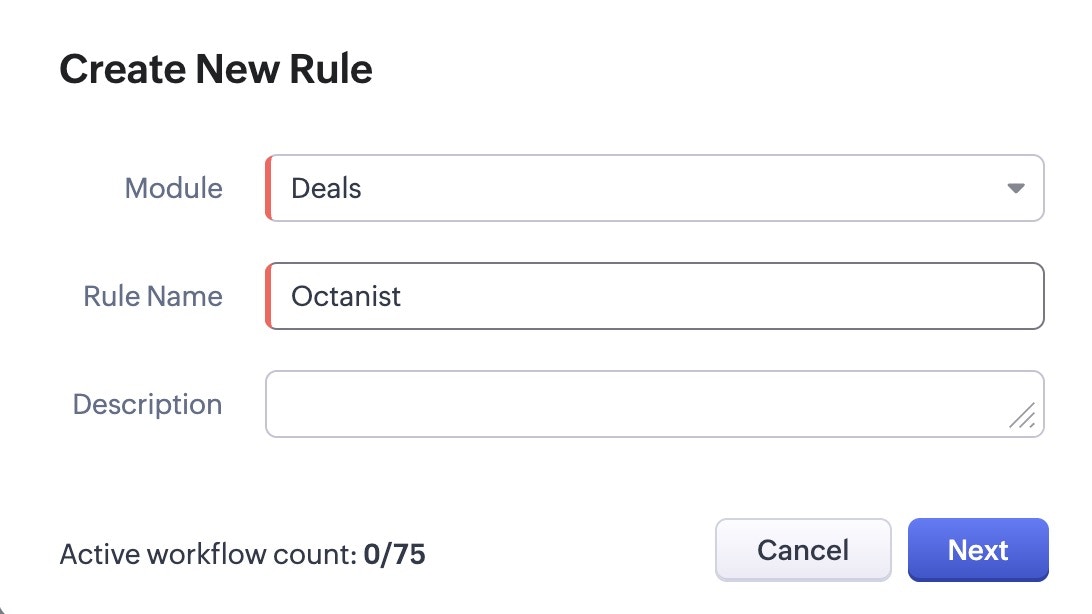
- You will see this popup. Give the following information:
- Module: select Deals.
- Rule Name: give it a name that is easy to identify, such as Octanist.
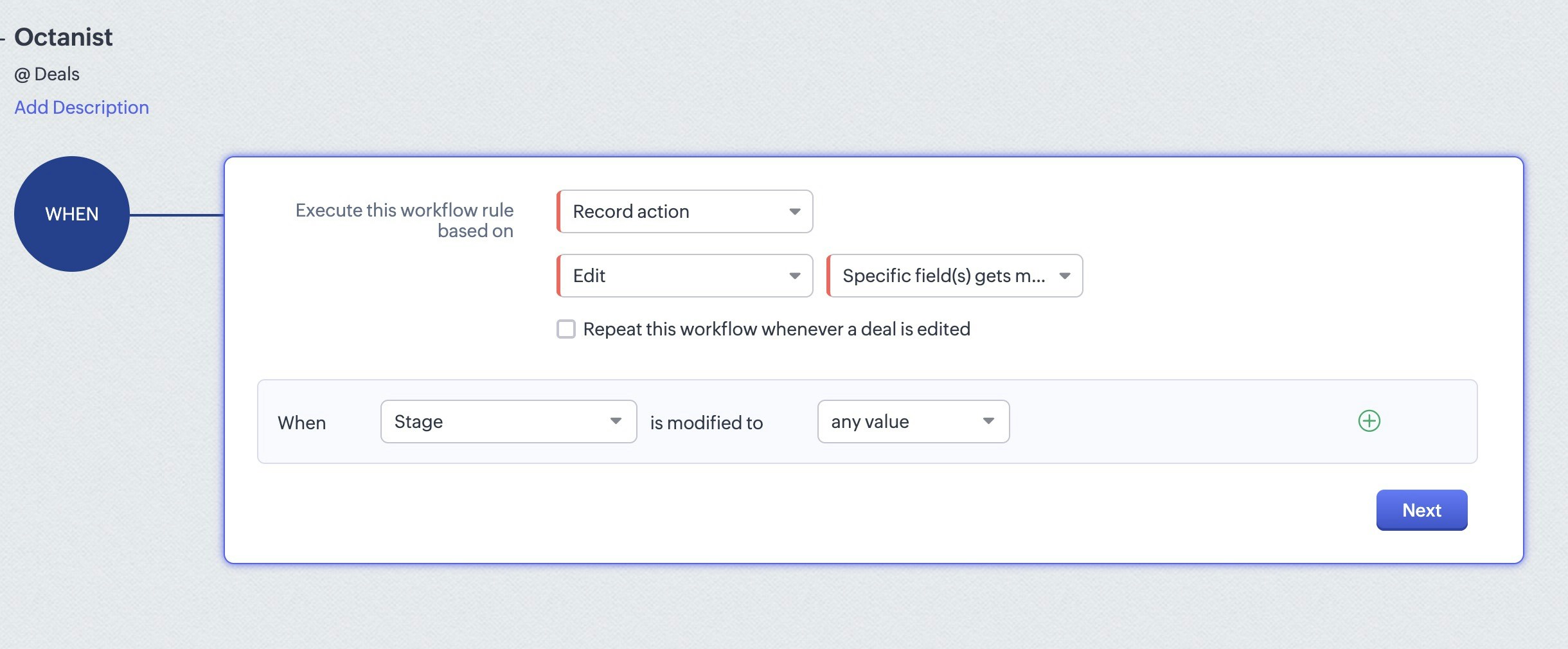
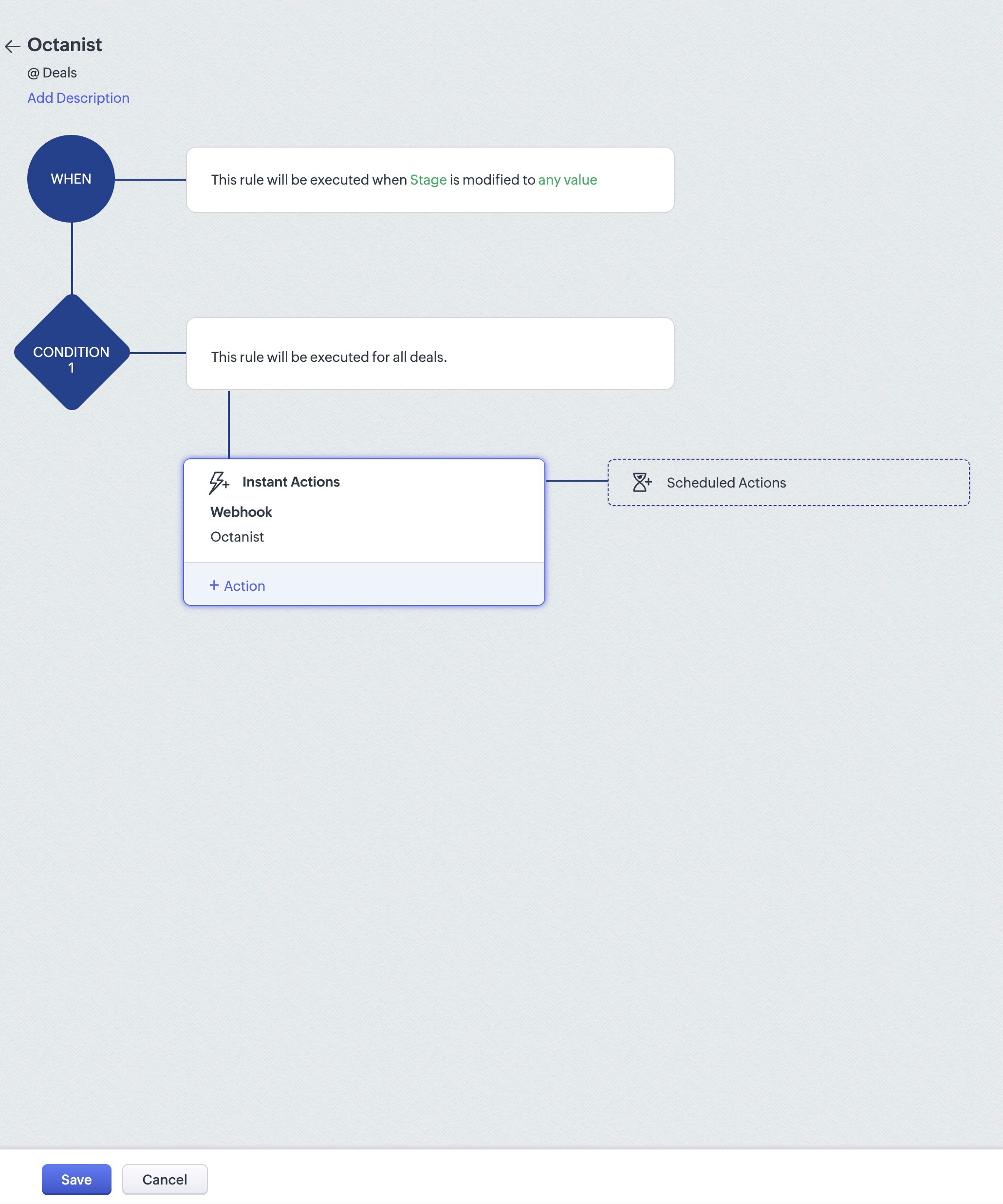
- When creating a rule. For the WHEN step choose the following options:
- Execute this workflow rule based on: select Record action.
- Then select Edit and Specific field(s) get modified.
- When: Stage is modified to any value.
- Click Next.
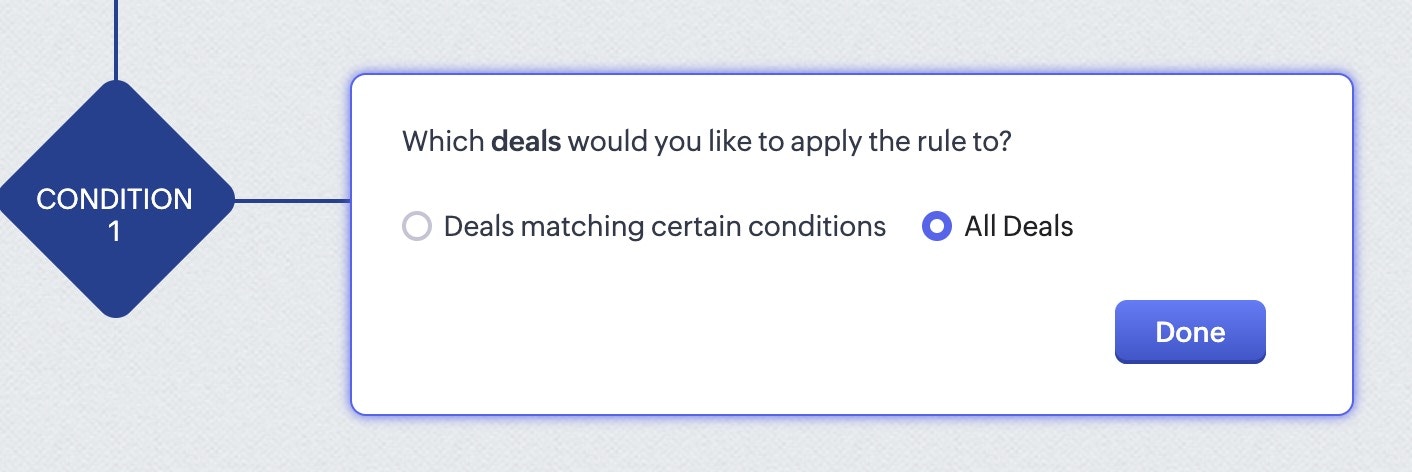
- Select All Deals and click Done.
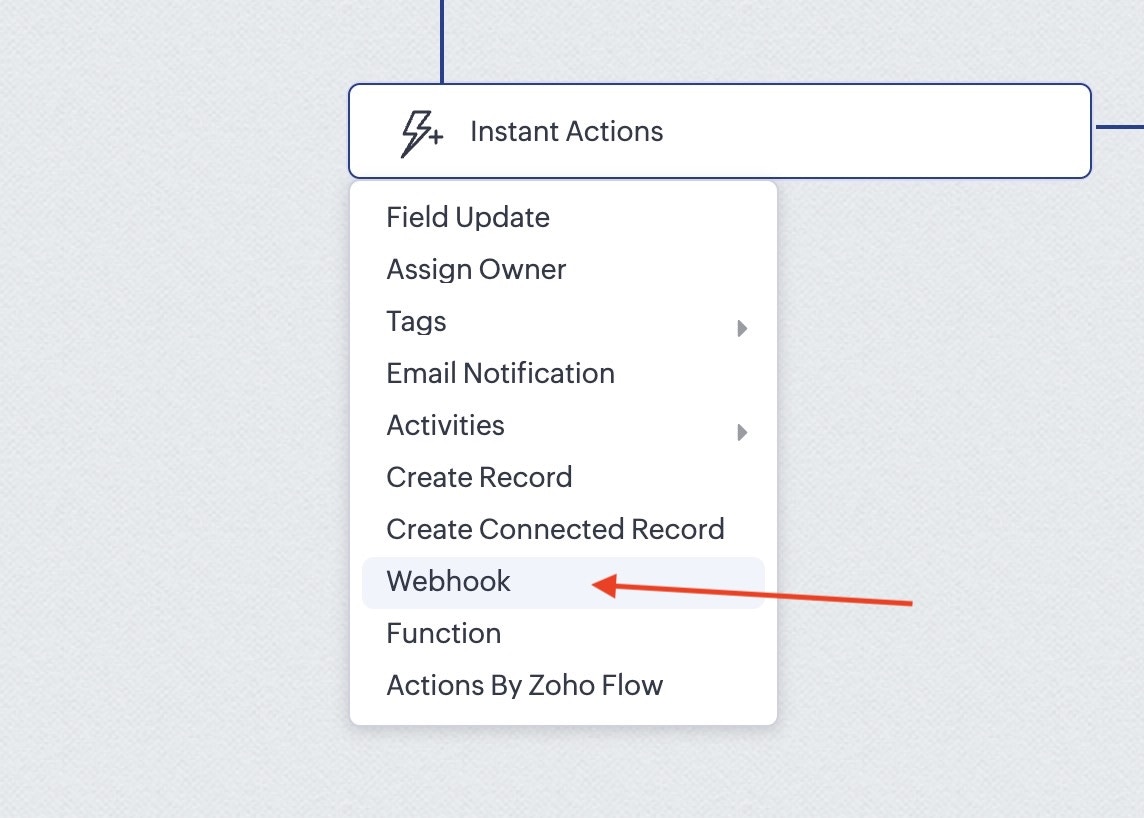
- For the action select Webhook and select the webhook we created earlier.
- Click Save.
2. Octanist
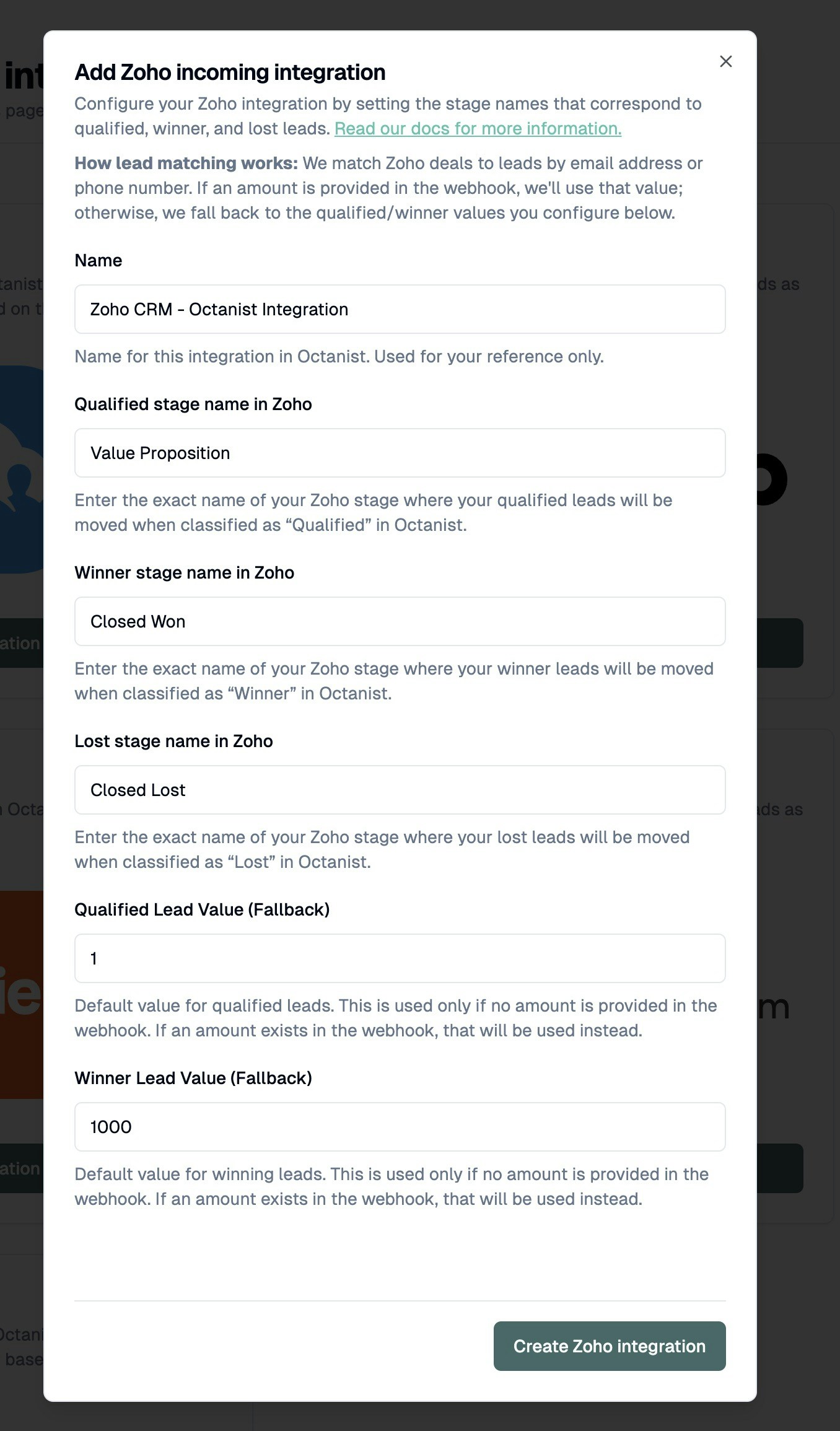
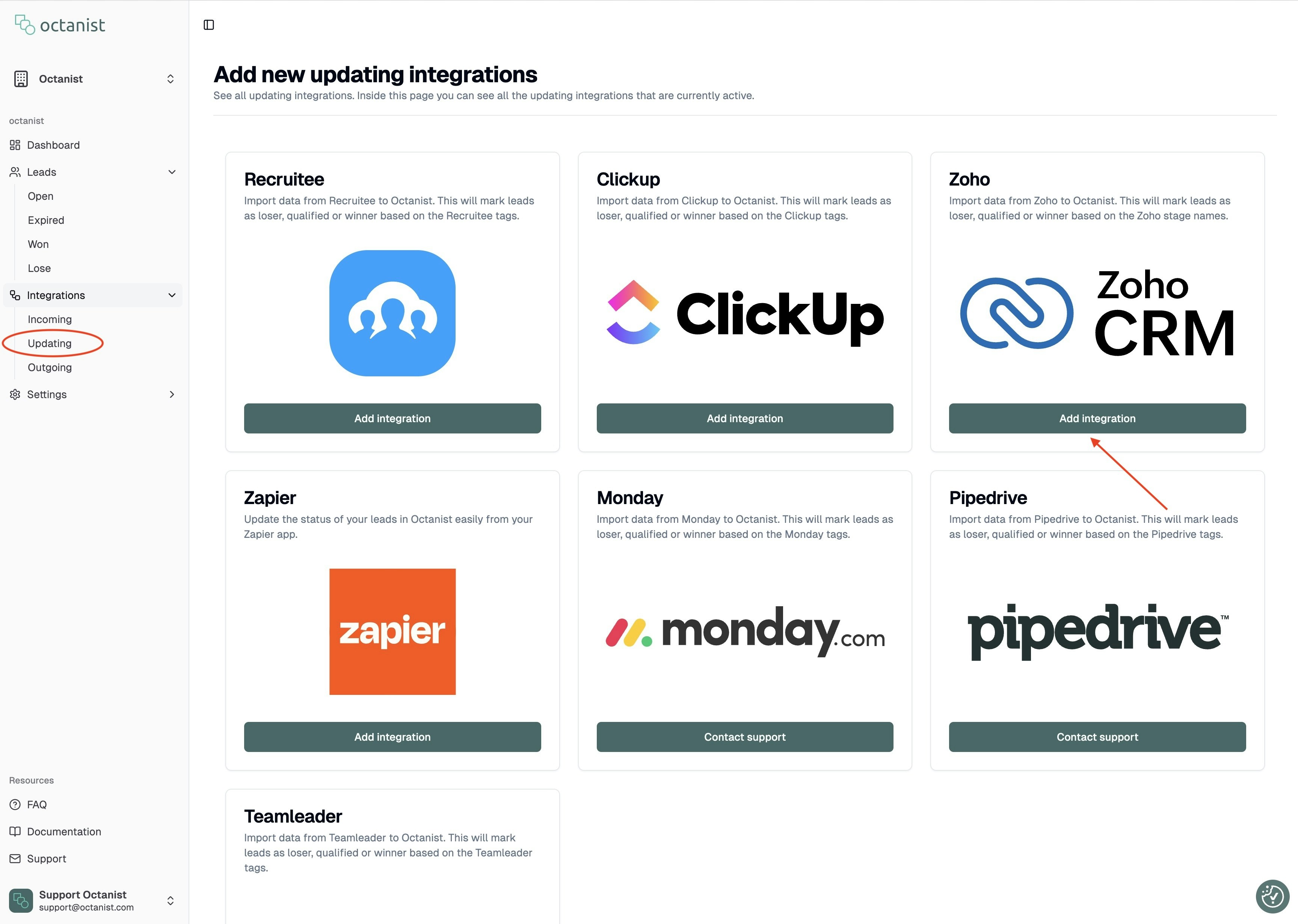
- Go to Octanist and navigate to [Integrations > Updating > Add New].
- Choose Zoho CRM and click Add Integration.
- Add a Name: give it a name that is easy to identify, such as Octanist - Zoho CRM Integration.
- For each of the stages select the name of the stage as it is in Zoho CRM.

- Enter fallback values when the amount field is not present.
- Then click Create Zoho CRM Integration.